AI assistants are quickly becoming another place where people get work done. Instead of moving between applications to find information, analyze data, and take action, users increasingly expect to ask for what they need directly from the AI tools already part of their workflow.
But those assistants are only as useful as the systems they can securely interact with.
Kion introduced its MCP Server to help bridge that gap, connecting AI clients to Kion’s data and capabilities.
Now, we’re taking it a step further.
The latest Kion MCP Server is built directly into the platform, significantly expands the tools and capabilities available to AI clients, and eliminates the need for a separate local installation.
Organizations can now connect supported AI clients directly to Kion, giving users a way to access Kion data and capabilities from the AI tools where they’re already working.
The result is a simpler way to bring Kion into AI-powered workflows while maintaining the permissions and accountability organizations already have in place.
What’s New with Kion’s MCP Server?
Model Context Protocol (MCP) is an open standard that allows AI tools and clients to connect with external systems to gather information and perform supported actions.
Kion’s latest implementation, also referred to as the Remote MCP Server, brings that connection directly into the Kion platform.
Unlike the original standalone MCP server, which required users to install and maintain software locally, the updated implementation is built into Kion. Once configured by the appropriate administrators, users can authorize compatible AI clients to access Kion data and tools using their existing permissions.
The updated MCP Server also provides approximately four times as many tools as the original implementation, with 128 additional tools available to users. This includes expanded capabilities involving Scopes, Cloud Rules, Enforcements, Organizational Units (OUs), Budgets, and Cloud Access Roles.
With more tools available and a simpler deployment process, users have more ways to work with Kion through supported AI clients, including Anthropic, OpenAI, and other compatible platforms.
What Can You Do with the Kion Remote MCP Server?
Connecting Kion to an AI client isn’t just about giving an AI assistant more information. It’s about making Kion’s data and capabilities available alongside the other tools people use to get work done.
Here are a few examples of what that can look like in practice, each tested using Claude Desktop connected to Kion’s MCP Server.
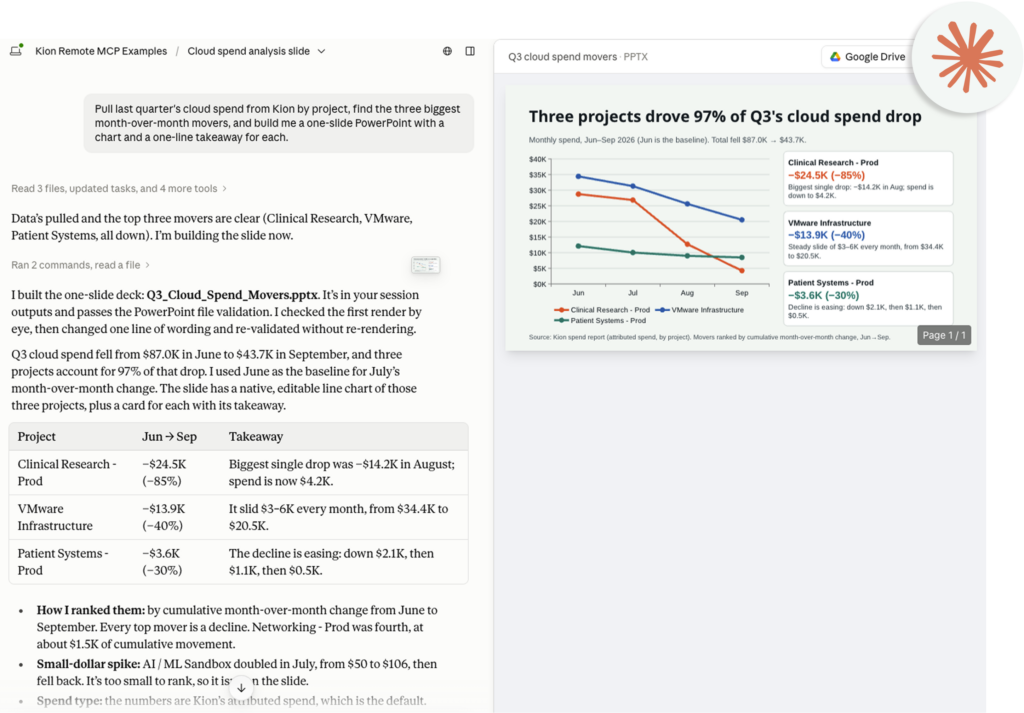
📊 Turn Cloud and AI Spend Data Into Presentation-Ready Insights
FinOps teams regularly need to turn cloud spend data into updates for leadership, finance, and other stakeholders. But pulling together the right numbers, identifying trends, and building a presentation can take time.
With Kion’s Remote MCP Server, users can bring real cloud spend data from Kion into their AI client and use it to create reports and presentations tailored to their organization’s needs.
For example, a user could ask their AI assistant:
“Pull last quarter’s cloud spend from Kion by project, find the three biggest month-over-month movers, and build me a one-slide PowerPoint with a chart and a one-line takeaway for each.”
Using data accessed through Kion’s MCP Server, an AI client with presentation-generation capabilities can analyze the spending changes and produce a slide ready for review and sharing.
📋 Build Reports with Kion Data
Finance teams often rely on standardized spreadsheets to track budgets, actual spend, and variances across projects. Keeping those reports up to date can mean manually pulling data from multiple systems and entering it into a required format.
With Kion’s Remote MCP Server, users can connect their AI client to Kion and use that data to populate existing reporting templates.
For example, imagine your finance team sends you a budget tracking workbook that needs to be completed with the latest project-level spending data:
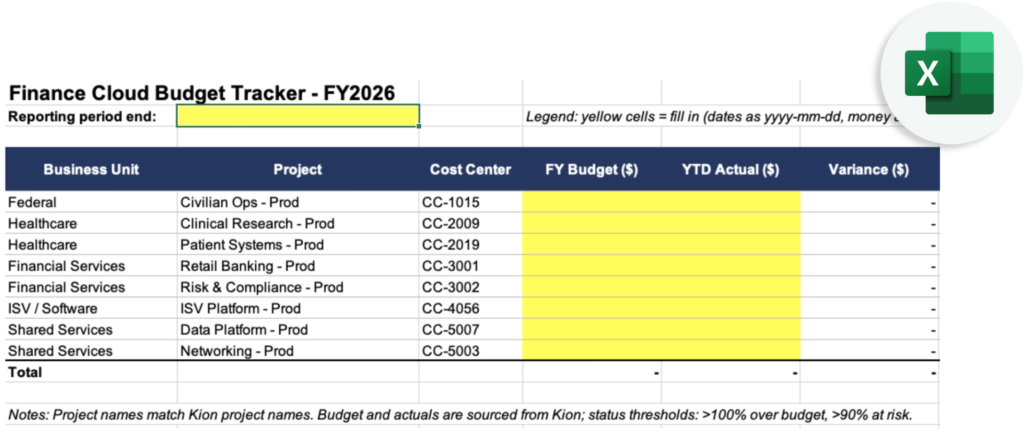
You could ask your AI assistant:
“Here’s our finance team’s budget workbook. Fill it with current-year budget versus actual spend from Kion for every project, keeping our layout, tabs, and formulas exactly as they are.”
Using data accessed through Kion’s MCP Server, the AI client can populate the workbook with project budgets and actual spend, creating a completed report for review and sharing:
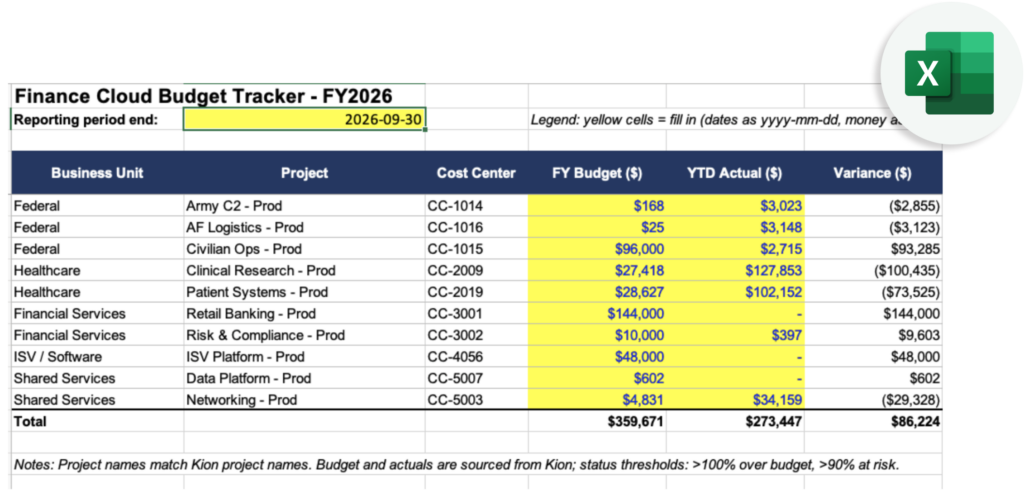
In this example, matching Kion Project names made it easier to connect the workbook to the right data. Organizations can also use consistent labels, such as cost center identifiers, to help align Kion data with external reporting requirements.
⚙️ Go Beyond Answers to Take Action with Automation
Kion’s MCP Server isn’t just about simple data exchange. Many AI clients can also execute tasks on a schedule, opening the door to custom, repeatable business processes that use Kion data.
For example, organizations can automate the process of notifying project owners about outstanding cloud savings opportunities.
You could ask your AI assistant:
“Check Kion for savings opportunities that are more than 5 days old and still not applied or dismissed. Message each project’s owner on Slack with the resource, the monthly savings, and how long it has been waiting.”
Using Kion data and a connected Slack integration, the AI client can identify outstanding opportunities and send project owners a message with the details they need to take action.
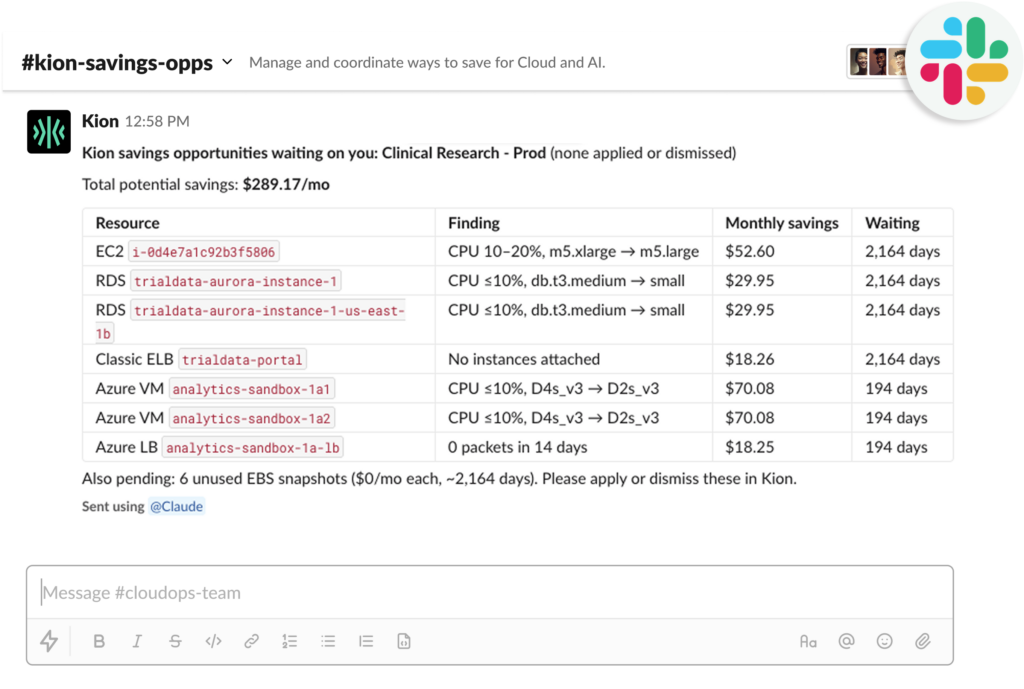
In this example, project owners are identified using labels in Kion, allowing the AI client to match projects with the appropriate Slack recipients.
Once the workflow is configured and tested, AI clients that support scheduled tasks can run it regularly, creating a repeatable process for following up on cloud savings opportunities without manually checking and messaging each project owner.
Enterprise AI Without Leaving Controls Behind
Connecting enterprise systems to AI shouldn’t mean creating a separate access model for AI.
Kion’s MCP Server uses the permissions of the Kion user who authorizes the connection. If a user only has access to certain Projects and OUs in Kion, connecting an AI client doesn’t give them broader access.
Users must also have the Use Lux AI Agent or Remote MCP Server global permission before they can use the capability.
Authentication is handled using OAuth 2.0, and Kion supports different authentication approaches depending on an organization’s deployment requirements.
For organizations deploying AI tools more broadly, administrators can configure the Kion MCP connection through supported AI platforms so authorized users can access Kion as a tool within their existing AI experience.
More Capabilities, Simpler AI Workflows
The latest Kion MCP Server builds on the original implementation with expanded tools, additional supported actions, and simpler deployment.
Because it’s now built directly into Kion, there’s no longer a separate local MCP server to install and maintain. And with more Kion capabilities available through connected AI clients, teams have greater flexibility to build workflows around their existing tools and processes.
Whether you’re preparing a leadership presentation, updating a finance report, or automating follow-ups on savings opportunities, Kion’s MCP Server makes it easier to bring cloud and FinOps data into the work you’re already doing.
For organizations bringing AI into FinOps workflows, this creates an easier way to make Kion’s data and capabilities available within the AI tools their teams already use, while maintaining Kion’s existing permissions and controls.
For the full list of supported tools, technical requirements, and deployment instructions, visit the Kion Remote MCP Server documentation.
Lux or MCP Server: What’s the Difference?
Lux and the MCP Server both provide AI-powered ways to work with Kion, but they serve different experiences.
Lux is Kion’s in-platform AI agent, designed to help users with reporting and administrative tasks while understanding the context of what they’re viewing within Kion.
The MCP Server makes supported Kion tools available within a user’s own AI client (such as Claude Desktop, Claude Code, ChatGPT, Codex, Cursor, and more). Rather than starting the conversation inside Kion, users can bring Kion into the AI environment where they’re already working.
Through the AI client, users can also combine Kion data and capabilities with files, other MCP servers, and information from connected systems.
The choice isn’t necessarily one or the other. It’s about where the user is working and what they’re trying to accomplish.
Want to explore how Kion connects with your existing AI tools? Learn more about the Kion MCP Server, including its capabilities, integrations, and enterprise controls.
Frequently Asked Questions
What’s new with Kion’s MCP Server?
Kion’s updated MCP Server is built directly into the platform and offers approximately four times as many tools as the original implementation, with 128 additional tools. This expands the Kion capabilities available through compatible AI clients while simplifying deployment.
What can I do with the updated Kion MCP Server?
Users can access Kion capabilities involving Organizational Units, Budgets, Cloud Access Roles, Scopes, Cloud Rules, and Enforcements through compatible AI clients. Depending on the AI client’s capabilities and other connected tools, users can also generate reports, populate existing spreadsheets, and coordinate automated workflows using Kion data.
The specific actions available depend on the user’s Kion permissions and the supported tools listed in the Kion MCP Server technical documentation.
Does the Kion Remote MCP Server require a local installation?
No. The updated MCP Server is built directly into Kion, eliminating the need to install and maintain the original standalone Python MCP server on individual workstations.
How is Kion’s MCP Server different from Lux?
Lux is Kion’s in-platform AI agent, designed to help users interact with Kion directly. The MCP Server makes supported Kion tools available through external AI clients, where users can combine Kion data with files and other connected systems.
Does Kion’s MCP Server use my existing Kion permissions?
Yes. Access is based on the permissions of the Kion user who authorizes the connection. Connecting an AI client does not grant additional Kion permissions. Users must also have the Use Lux AI Agent or Remote MCP Server global permission.
Are actions taken through the MCP Server auditable?
Yes. Activity processed through Kion’s MCP Server is recorded in the application’s audit logs, helping organizations maintain accountability for actions performed through connected AI clients.
Can Kion’s MCP Server work with other MCP servers?
Yes. Compatible AI clients can connect to Kion alongside other MCP servers, allowing users to build workflows that combine Kion data and capabilities with other connected systems. The available functionality depends on the AI client’s capabilities and configuration.