

An AI cost spike is a sudden, unplanned jump in what your models cost. It usually comes from more tokens per request, a pricier model reaching production, or an agent stuck in a loop. You catch it by comparing live spend to a baseline for each model, then sending an alert to the workload owner the same day.
Most teams learn about a spike when finance forwards the invoice. By then the money is spent, and the cause is several deployments old. This guide shows how to close that gap. It starts with building a baseline, then watching the signals that move first, and running a rehearsed response. It ends with the guardrails that keep the same spike from happening again.
Why AI cost spikes move faster than cloud spikes
A virtual machine costs the same every hour, but an AI prompt does not. One response can consume 20,000 tokens or 20 million, and you may not be able to know in advance. One user action can also fan out across several models or agents, so costs can compound within minutes.
The people responsible for generating the costs have changed too. Developers, marketers, salespeople, and executives all use AI, often with no budget attached to their usage. For example, at FinOps X this year, the opening keynote described a company that was three times over its entire 2026 token budget by April.
A monthly budget does not show pace. A workload can run far above its normal rate and still look fine on the fifth of the month. You need a daily view at minimum, and an hourly view for your biggest workloads.
For the full maturity model, see A FinOps Framework for Managing AI Token Spend.
Build a baseline for each model
You can’t spot a spike without first defining what is “normal”, and your own history can help you build that baseline.
- Pick a comparison window. Compare the current hour with the same hour over the past two weeks. Two weeks covers weekday and weekend patterns without hiding real shifts.
- Split it by model, team, and environment. A spike in one service disappears inside an account-wide total.
- Keep production and test apart. A load test should not raise the baseline for a live feature.
- Reset after planned changes. A launch or a model migration is a new normal. Note it, so the baseline does not flag it forever.
Baselines only work if the spend is able to be mapped to an owner. If you have not attributed tokens to teams yet, that should be your starting point. Kion Scopes group and allocate AI costs to teams, projects, and departments, so each baseline has a name next to it. For the attribution step, see shared AI cost allocation across teams.
Monitor token usage and spot spikes and anomalies early
Dollars are a lagging signal. By the time the total moves, the cause is already in production.
These signals tend to move first:
| Signal | What it tells you | Where to look |
| Tokens per request | A prompt change or growing context is making every call bigger | Request logs, provider usage reports |
| Retries and loop count | An agent is repeating a failing step | Agent traces, tool-call logs |
| Model in use | A pricier model reached a workload it was not approved for | Provider usage by model |
| Single expensive call | One request has a huge context or unbounded output | Per-request cost, sorted high to low |
| Pace against budget | A slow climb will cross the limit before month end | Budget vs. actuals by day |
| Input vs. output tokens | Output is growing faster than input, which usually means verbose or runaway generation | Token breakdown by model |
| Run-level traces | Which task, model, or tool call drove the cost | Trace view with usage per call (OpenTelemetry-style GenAI usage data works) |
It is recommended to group calls into runs. An expensive run is rarely one huge call. It’s usually forty ordinary calls that should have only been eight.
Teams often call this AI cost anomaly detection. The practice is the same either way: compare live usage to normal, and flag what is far outside it.
For pace against budget, a forecast helps, and our guide to forecasting AI token spend covers that method.
Set alert thresholds that flag unexpected spend
A threshold can be a trade-off. A low multiple over baseline catches more problems and raises more false alarms. A high one stays quiet and misses the smaller spikes.
These are starting points, not rules. You should tune them per workload.
- High-spend, customer-facing workloads: start tight, around 2x the baseline. A miss is expensive here.
- Steady, low-variance services: start looser, around 3x. Noise teaches people to ignore the channel.
- Batch jobs and test environments: check less often and use a wider margin, because their normal range is wide.
- Unapproved models: alert on any use. This one needs no multiple.
Tip: name an owner for every alert. An alert that simply says “AI spend is up” tends to get ignored. An alert that says “the support assistant is up, here is the model and the request” is more likely to get fixed.
But it’s important to remember that an alert only serves as a warning. It does not stop anything from happening. To prevent overspend, pair each alert with a limit that does. This is covered below.
Runbook: confirm, contain, attribute, prevent
Write the runbook once and rehearse it. Each step should have a named person.
- Confirm. Open the usage data behind the alert. Check the model, token counts, and request volume against the baseline. Rule out a planned launch.
- Contain. If the cause is a runaway agent, an unapproved model, or a bad deploy, stop the path. Roll back, disable it, or cap the workload. Contain first and investigate second.
- Attribute. Tie the spike to one change: a prompt edit, a model swap, a traffic surge, or a loop. Token cost by model, provider, input vs. output, and cached vs. uncached usage makes this fast. For allocation models that make the owning team see the cost, see How to Build an AI Chargeback Model.
- Prevent. Ship the fix, then add a guardrail so the same class of spike cannot return unnoticed. Turn the lesson into a budget, an approved model list, or a limit.
How to stop runaway costs from AI agent loops
AI agents are one of the fastest ways to turn a small bug into a large bill. Each step in a chain adds token use downstream, and a failing tool call can repeat until something stops it.
In order to prevent this, put limits in place before an agent goes live:
- Token budget: Set a token budget per task and per day. A single run should not be able to spend a month of budget.
- Per-run spend cap: Set a spend cap for each run.
- Turns and iterations: Cap turns and iterations and stop the run when the cap is reached. Then check the cap does not cut off tasks that legitimately need more steps.
- Retries: Cap retries on tool failures. Retry a few times, then fail and report.
- Rate limits: Add rate limits per workload.
- Traces: Trace each run, and alert when a run exceeds its normal length or repeats the same tool call with near-identical inputs.
Be clear about what each control does. An alert warns. A limit stops. A provider-level spend limit may lag and is not a per-task guarantee. Build limits into the agent first, then set budgets at the platform level as a second layer.
Prevent the next spike with budgets and approval policies
Detection finds the spikes you can see. Prevention covers the ones you cannot predict yet.
- Control access: Know which keys and models exist, who owns them, and what each is for.
- Start soft: Set budgets by team and use case, and notify owners as they approach a threshold. Enforce selectively, only where the risk justifies a hard limit.
- Keep a human in the approval path: Hard stops should have human approval.
For the full staged approach, see A FinOps Framework for Managing AI Token Spend. For guardrail types and how to decide what to scale, fix, or stop, see How to Maximize the Value of AI with Cost Guardrails.
How Kion helps you catch AI spikes and unexpected spend
Kion’s FinOps+ platform connects directly to Anthropic and OpenAI. Teams can view, allocate, budget, and report on AI usage costs next to AWS, Azure, GCP, and OCI spend as well as the cloud providers associated AI models (ex: Azure Foundry).
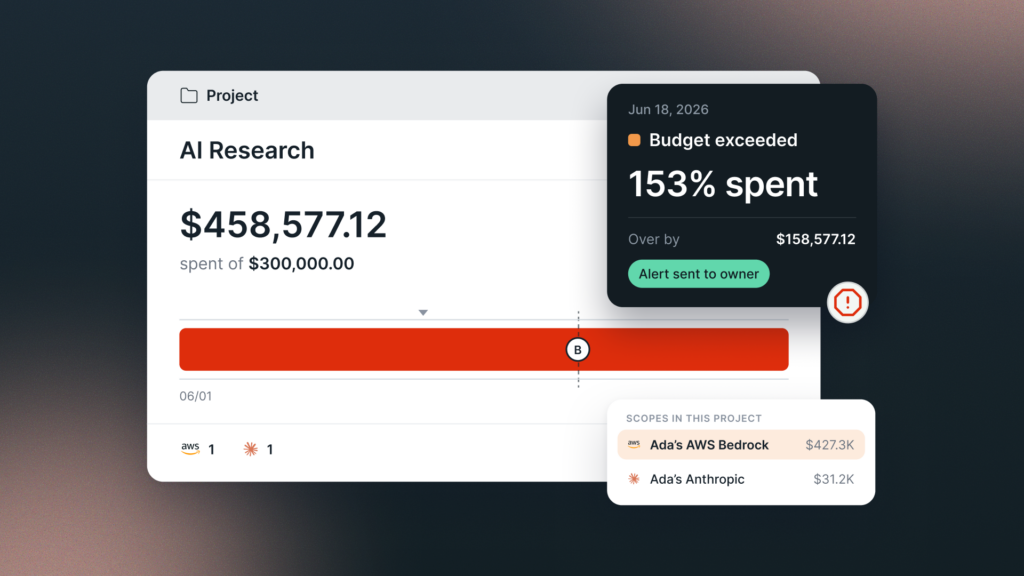
- Budget thresholds: notifications alert stakeholders as token costs and usage approach a limit, so an unexpected jump reaches an owner before the invoice does.
- Spend spike checks: Kion compares spend against the prior day, last month, or a daily average and alerts the project owner.
- Scopes: group and allocate AI costs to teams, projects, and departments, so every alert has an owner.
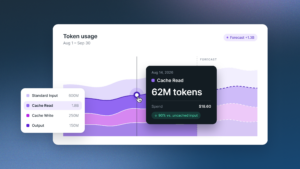
- Token cost analysis: break spend down by model, provider, input vs. output, and cached vs. uncached usage to find what changed.
- Enforcement: when a budget is crossed, Kion can enforce controls that stop further AI activity, with approval workflows where a person should decide.
- Model controls: policies can restrict which AI models teams may use.
See FinOps for AI for the full capabilities and Spend Controls for budgets and enforcement.
Why do AI agent loops cost so much?
Each step in a loop calls a model again, and each call adds tokens. A loop that retries a failing tool keeps paying for every attempt. Because the agent decides how many steps to take, cost depends on behavior, not on a fixed rate.
How often should I check AI spend?
Check high-spend workloads hourly and everything else daily. A monthly check is too slow to stop a spike. A weekly review still belongs in your process to adjust baselines and thresholds.
How do I know if AI spend is unexpected?
Compare it to a baseline for that model, team, and environment, not to the total. Spend is unexpected when it runs well above the same hour in recent weeks without a launch, a model change, or a traffic surge to explain it.
Who should get the alert?
The owner of the workload that moved, and the FinOps lead as a second contact. Send it where they already work, such as email or chat. Avoid a shared channel with no owner.
Can a budget stop a runaway agent?
A budget can limit the damage. Notifications warn you as spend approaches a limit, and enforcement can restrict further activity once it is reached. An alert alone does not stop a run. Limits inside the agent, such as a maximum number of steps or a per-run spend cap, stop a loop sooner. Use both.
What is AI cost anomaly detection?
AI cost anomaly detection means finding AI spend that is far from normal, early. This guide covers the process and signals; the tooling you use to run it is a separate choice.